Get Started
Your first workspace
Add a repository, configure how it runs, and start repository-backed agent work.
A workspace is where Proliferate runs repository-backed code work.
Use a workspace when the result should be tied to a GitHub repository, branch, diff, test run, or pull request. Use Cowork when you want to start from a thread, plan, artifact, or higher-level coordination.
Add a GitHub repository
After installing Proliferate, add a repository you want agents to work in.
Proliferate manages the repository as a source for workspaces. Each workspace you create will get its own branch, working tree, sessions, files, and review state.
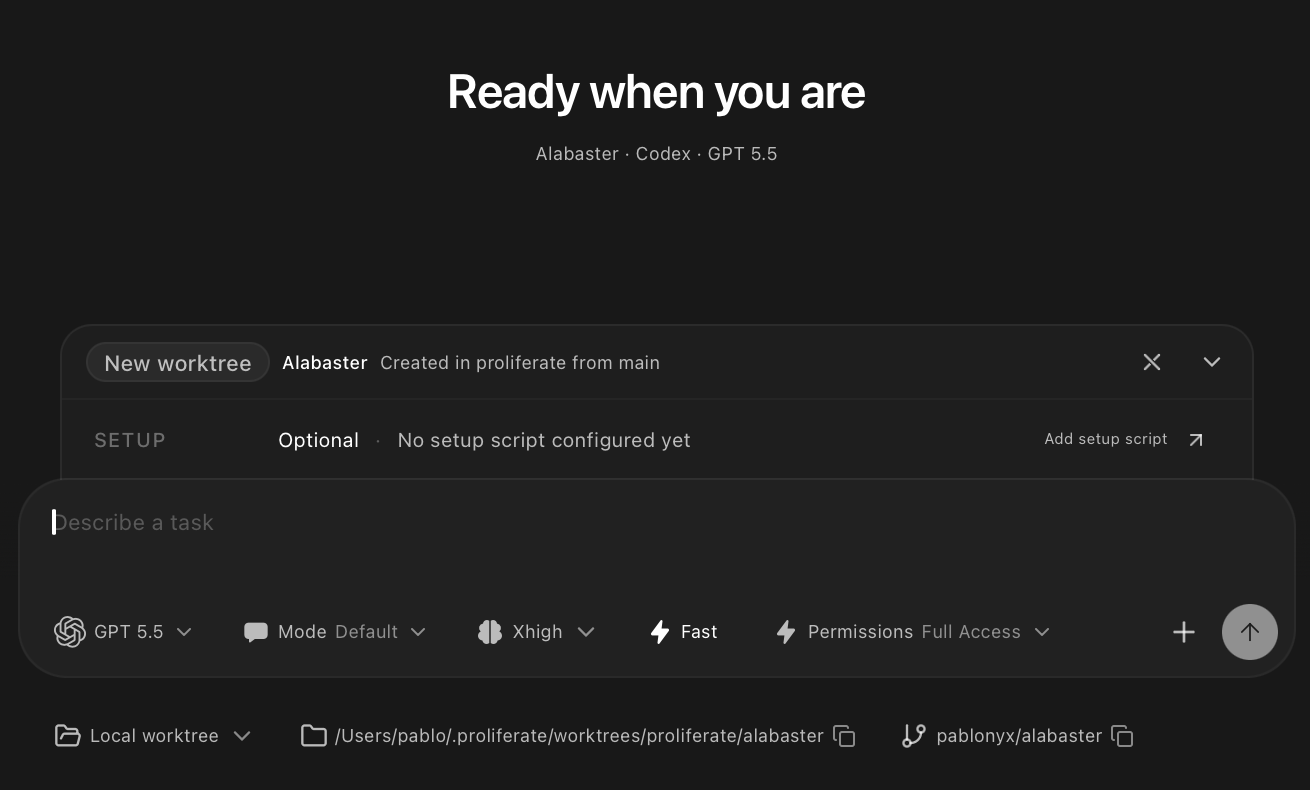
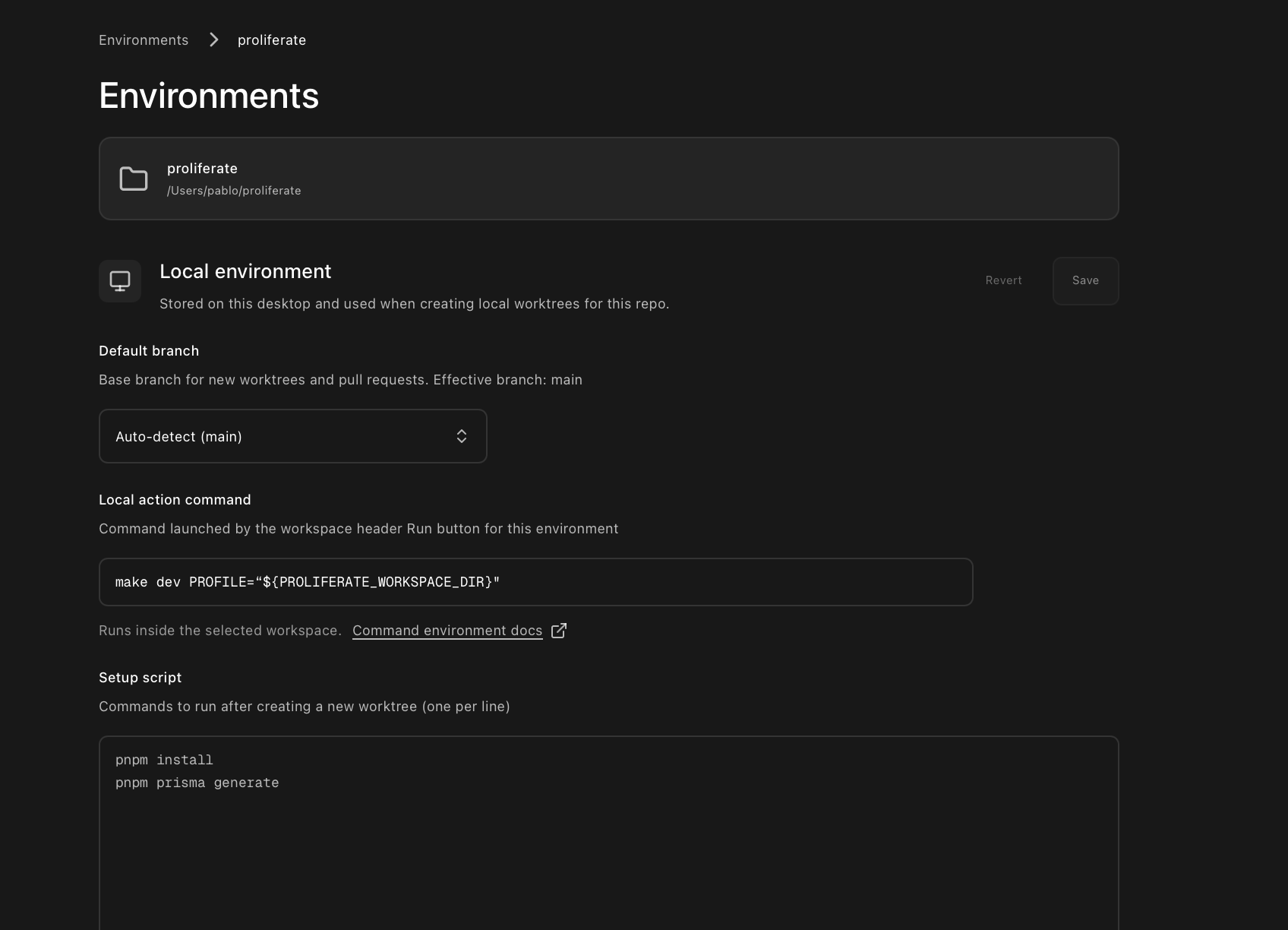
Configure your workspaces
You can configure how workspaces for a given repo should run- setup scripts for dependencies, run scripts for your app, and cloud settings for remote execution. See Workspaces for the deeper model.
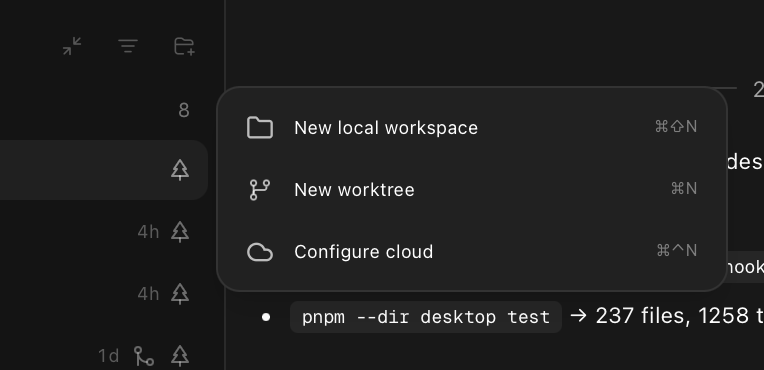
Create a local, worktree, or cloud workspace
When you start work from a repository, choose where it should run.
| Target | Use it when |
|---|---|
| Local checkout | You want the agent to work directly in an existing checkout. |
| New worktree | You want a clean branch and working tree for one reviewable stream of work. |
| Cloud workspace | You want the agent to run remotely and keep working away from your laptop. |
You can migrate workspaces from cloud environments to local checkouts and vice versa at any point.
For your first workspace, choose New worktree unless you specifically want the agent to work in your current checkout or in the cloud.
New worktrees are the safest default for code changes because they keep agent edits away from your main checkout.
Do work
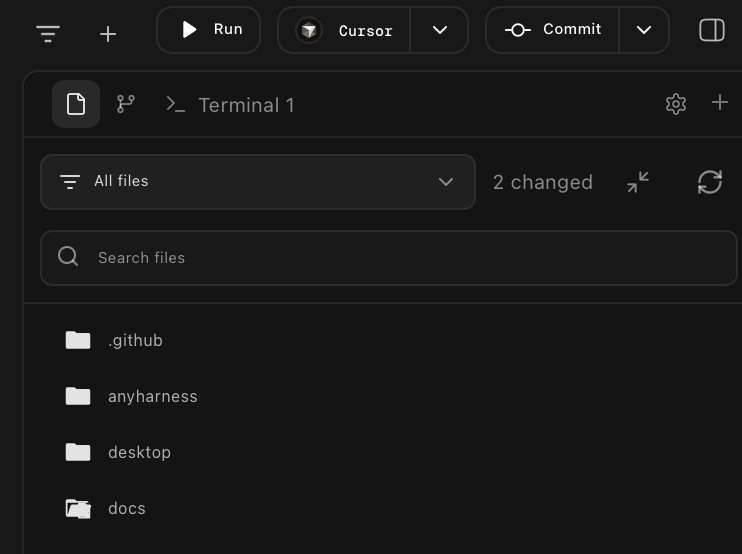
Once the workspace opens, use it as the working surface for the task.
Inside a workspace, you can use:
- Multiple chats or agent sessions.
- Terminals for commands, tests, and app output.
- Browser or preview surfaces when the repo has a runnable app.
- File browser and git views for inspecting changes.
- Pull request review surfaces when the branch is ready.
Worktrees isolate workflow and branch state. They are not a security boundary. Use cloud workspaces when you want execution away from your laptop.
Clean up
When the workspace's PR is merged, close the loop by getting the worktree off your machine. You have two options:
- Let Proliferate clean it up. Proliferate will auto-detect a merged branch and non-destructively archive your workspace on its own. You can configure this in Settings → Workspaces → Auto-clean merged worktrees.
- Clean it up yourself. Mark the workspace as done and delete it. Proliferate removes the worktree directory and archives the workspace state.
Go deeper
Workspaces
Understand repositories, environments, branches, and sessions.
Agents
Configure Claude Code, Codex, Gemini, OpenCode, and other harnesses.
Review
Use plan review and code review before merging.
Automations
Run recurring or triggered agent work.
Plugins
Extend Cowork and coding agents with tools and connectors.
Cloud
Run workspaces away from your laptop.
Next: start your first Cowork task.