Workspaces
Understand how Proliferate isolates work.
All the work you do in Proliferate happens in a workspace.
Workspaces are isolated environments based on your GitHub repositories. A workspace can run in a local checkout, a new worktree, or the cloud.
| Target | Use it when |
|---|---|
| Local checkout | You want the agent to work directly in an existing repo. |
| New worktree | You want a clean branch and working tree for one reviewable stream of work. |
| Cloud workspace | You want the agent to run remotely and keep working away from your laptop. |
You can see all your workspaces in the sidebar. The indicators show whether a workspace is a local checkout, worktree, or cloud workspace, and whether it was created by an automation or another agent.
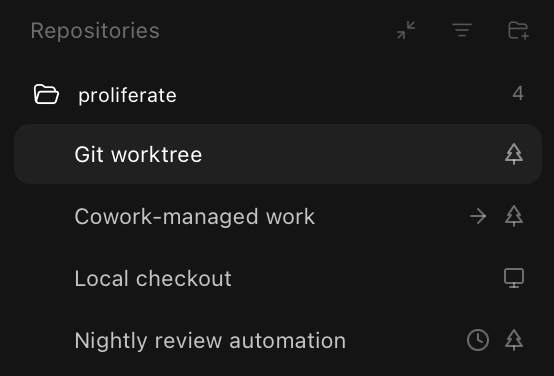
What goes in a workspace?
In a single workspace you can have:
- Unlimited AI chats.
- Unlimited terminals.
- Unlimited browsers.
- Git review and status.
- File browsing.
Parallel agents
Parallel work is safest when each agent has an independent branch or task.

Good parallel work:
- Fix independent bugs.
- Add tests while another workspace implements a feature.
- Compare possible implementations.
- Review a diff while another agent continues implementation.
Risky parallel work:
- Multiple agents editing the same files.
- Broad refactors without a plan.
- Database migrations without coordination.
- Infrastructure or release work without explicit approval.
Worktrees isolate workflow and branch state. They are not a security boundary. Cloud environments isolate execution away from your laptop.
Terminals and browsers
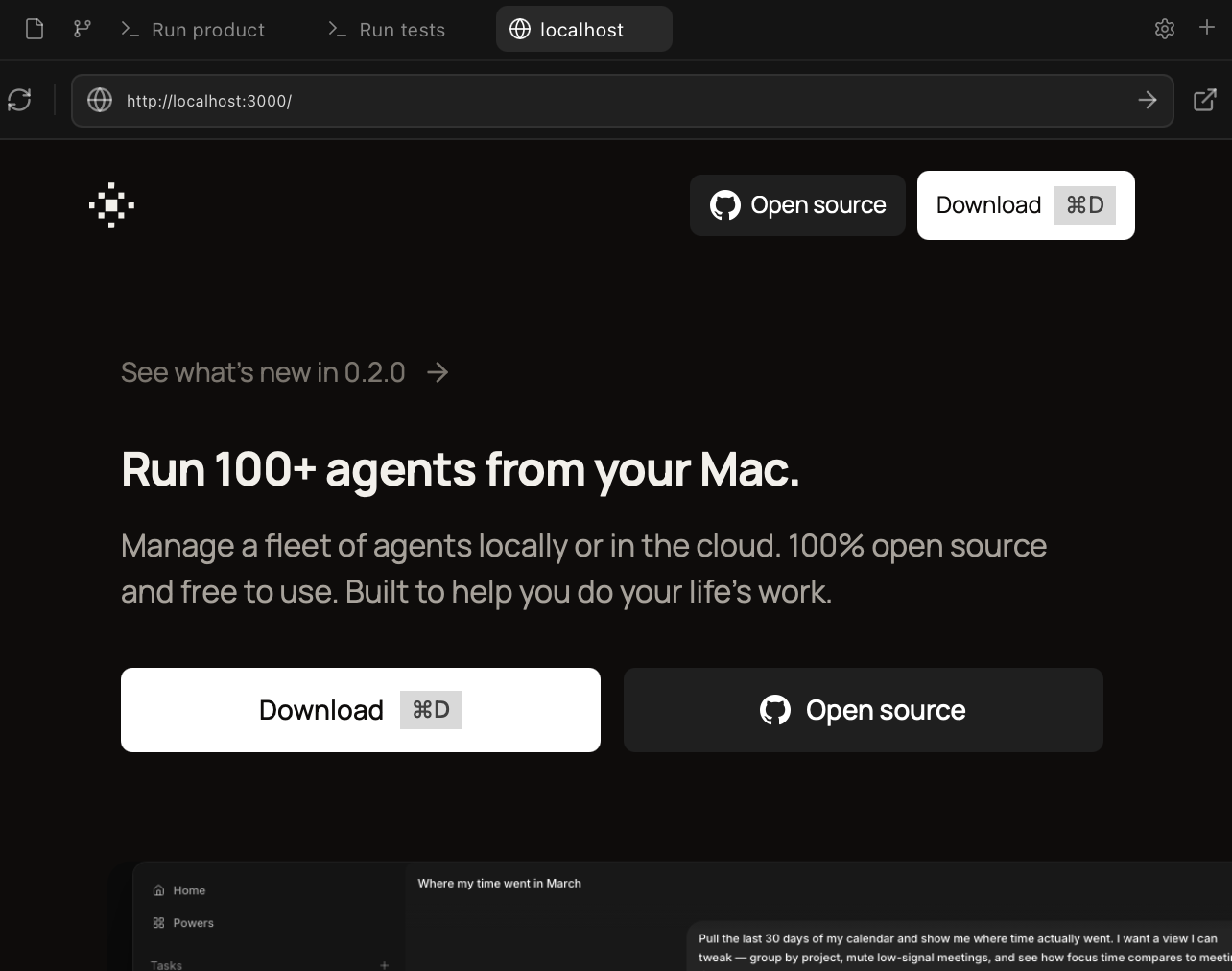
Use the right sidebar to spin up terminals and browsers to verify the work being done.
Browsers and terminals run wherever the workspace runs: local checkout, worktree, or cloud workspace.
File browser
The file browser keeps the workspace grounded in the actual repository. Use it to move from an agent conversation into the files it created, edited, or referenced.
It is especially useful while work is still in progress:
- Inspect the repository tree without leaving the workspace.
- Open files mentioned in a chat, terminal, browser, or review.
- Check generated files, config changes, and test updates before approving the next step.
- Keep your place while switching between chats, terminals, browsers, and git review.
The file browser follows the selected workspace. If the workspace is local, it reads from your local checkout or worktree. If the workspace is cloud-backed, it reads from the remote environment attached to that workspace.
Git review
Git review is the checkpoint between "the agent changed code" and "this is ready to ship."
Use it to inspect the branch as a real diff, not just as a transcript summary. The review surface should be where you answer:
- What files changed?
- Is the diff focused on the task?
- Did the agent leave unrelated edits behind?
- Do tests, generated files, and configuration changes make sense together?
- Should this be revised, committed, opened as a PR, or marked done?
When something looks off, send the agent back into the same workspace with a specific follow-up. Keep the review tight: ask for a smaller diff, a missing test, a clearer implementation, or an explanation of one file before moving on.
A workspace is not finished when the agent stops. It is finished when the diff has been reviewed, the branch state is understood, and the next action is clear.
Configuring workspaces
Each repository carries its own workspace configuration. You can set:
- Setup scripts: install dependencies or prepare the repo. This runs as part of the creation of every worktree.
- Run scripts: start your app, service, or a preview the agent should use.
- Cloud workspace settings: remote setup for work that should continue away from your laptop.