Connect a repository
Add a repository, configure how it runs, and start repository-backed agent work.
A workspace is where Proliferate runs repository-backed code work.
Use a workspace when the result should be tied to a GitHub repository, branch, diff, test run, or pull request. Use Cowork when you want to start from a thread, plan, artifact, or higher-level coordination.
Add a GitHub repository
After installing Proliferate, add a repository you want agents to work in.
Proliferate manages the repository as a source for workspaces. Each workspace you create will get its own branch, working tree, sessions, files, and review state.
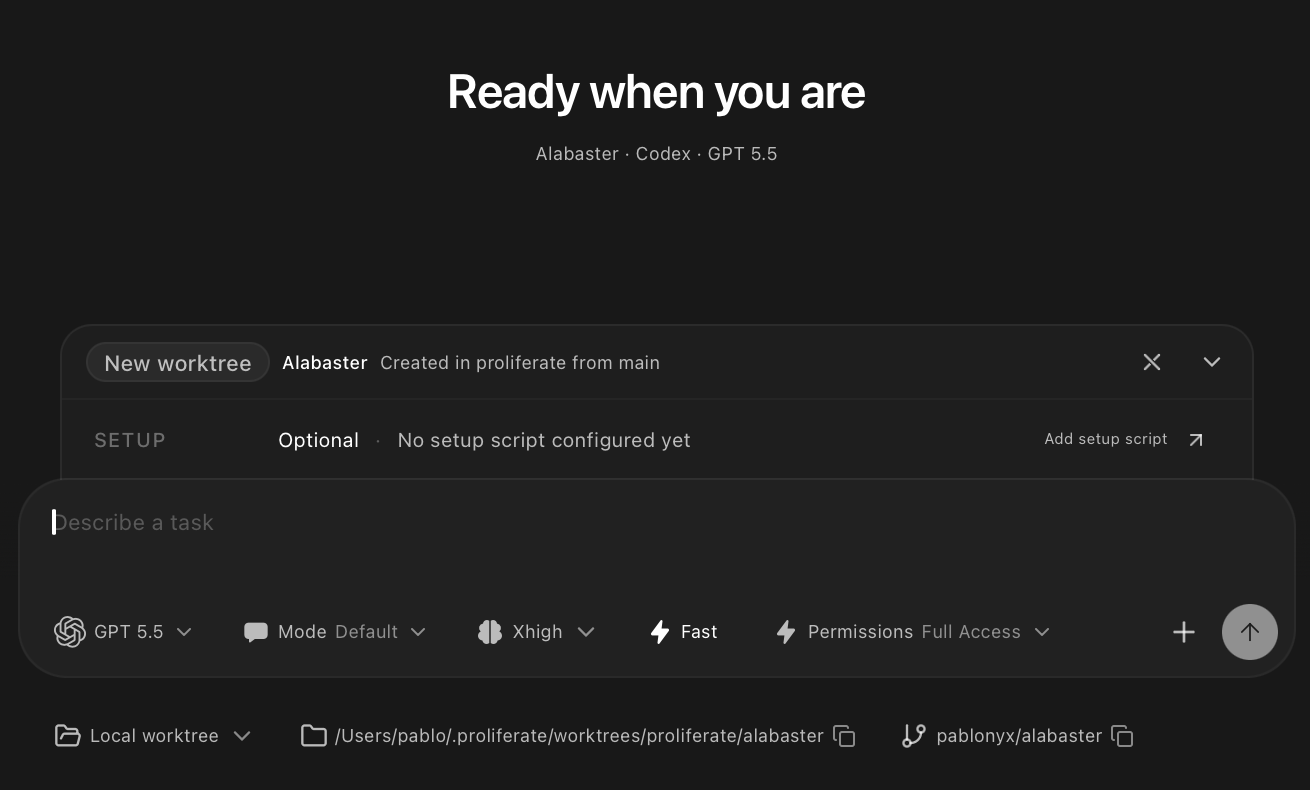
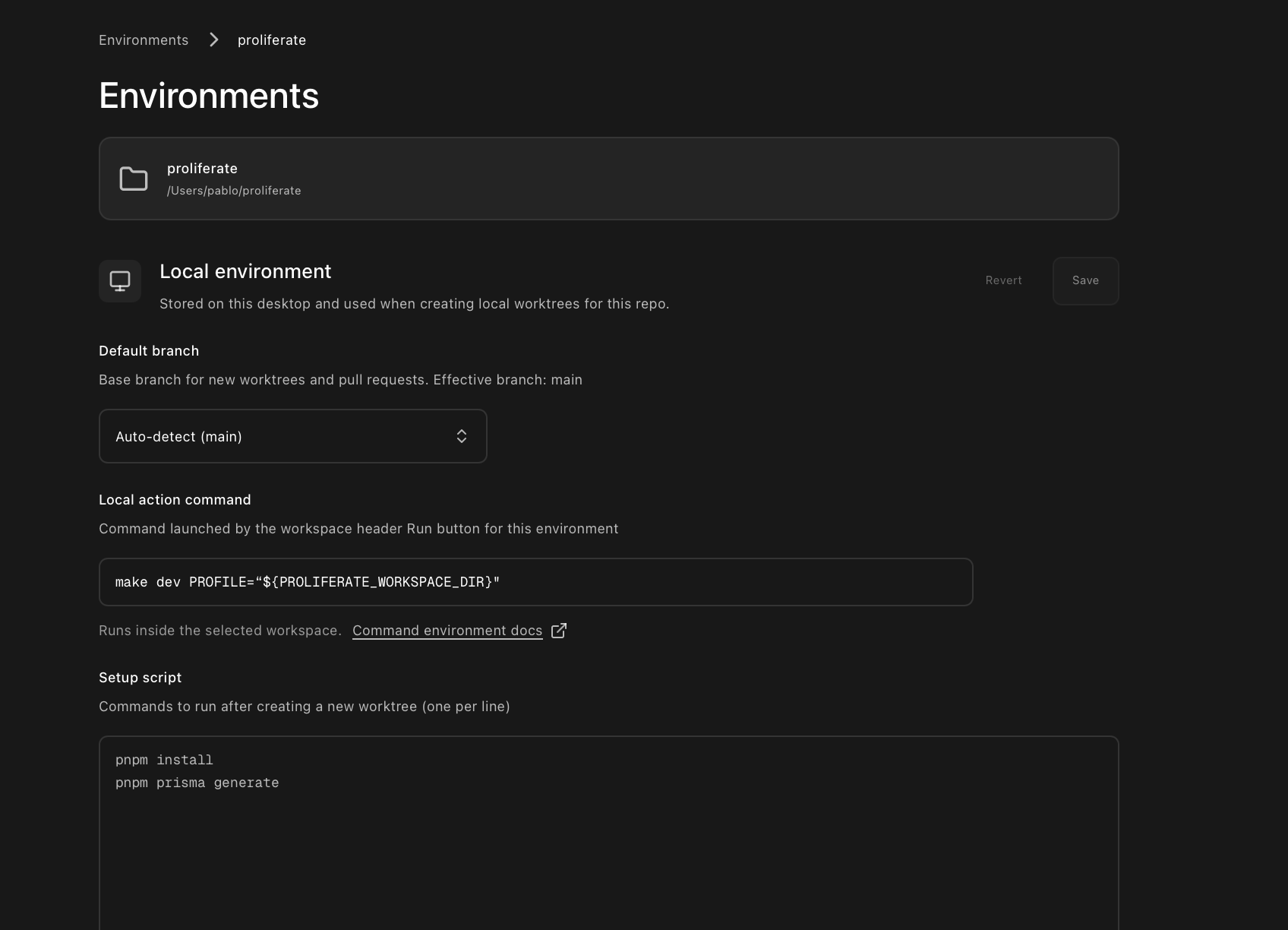
Configure your workspaces
Before you create your first workspace, tell Proliferate how the repo runs. Open the repo's settings and set a default branch, a setup script, and a run command, once for local work and once for cloud work. See Configuration for the full picture, and Workspaces for the deeper model.
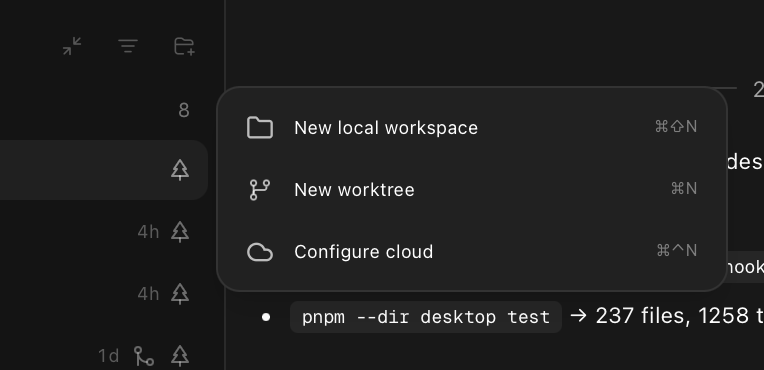
Create a local, worktree, or cloud workspace
When you start work from a repository, choose where it should run.
| Target | Use it when |
|---|---|
| Local checkout | You want the agent to work directly in an existing checkout. |
| New worktree | You want a clean branch and working tree for one reviewable stream of work. |
| Cloud workspace | You want the agent to run remotely and keep working away from your laptop. |
Pick the target when you create the workspace. That keeps local and cloud work from getting tangled, and it means the workspace behaves the same way for its whole life. If you decide later you want the other kind of execution, create a new workspace with that target instead.
For your first workspace, choose New worktree unless you specifically want the agent to work in your current checkout or in the cloud.
New worktrees are the safest default for code changes because they keep agent edits away from your main checkout.
Do work
Once the workspace opens, use it as the working surface for the task.
Inside a workspace, you can use:
- Multiple chats or agent sessions.
- Terminals for commands, tests, and app output.
- Browser or preview surfaces when the repo has a runnable app.
- File browser and git views for inspecting changes.
- Pull request review surfaces when the branch is ready.
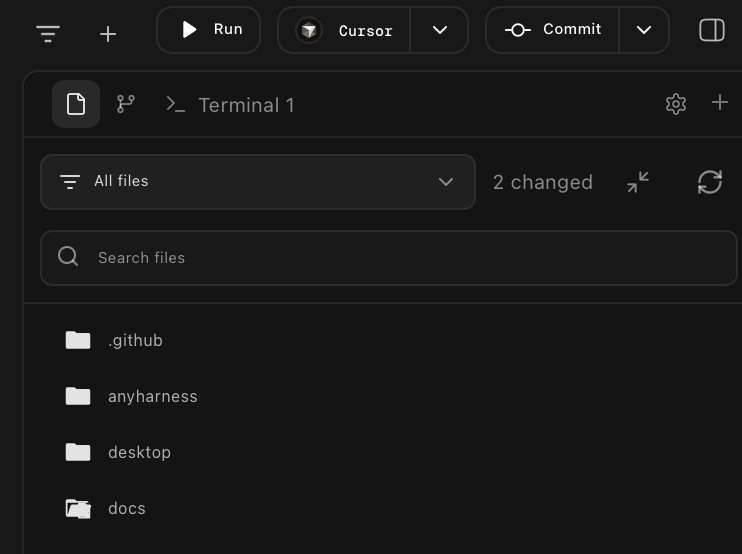
Worktrees isolate workflow and branch state. They are not a security boundary. Use cloud workspaces when you want execution away from your laptop.
Clean up
When the workspace's PR is merged, close the loop by getting the worktree off your machine. You have two options:
- Let Proliferate prune automatically. In Settings → Pruning, set the number of worktrees you want to keep per repo. Once you're over that count, Proliferate removes the oldest ones automatically. It skips any checkout with uncommitted changes, so nothing gets deleted out from under you.
- Clean it up yourself. Right-click the workspace in the sidebar and choose Delete workspace... to remove the worktree directory and archive the workspace state, or Archive... to hide it from the sidebar without deleting anything.
Workspace sidebar context menu
Right-click menu on a workspace showing Delete workspace... and Archive... actions.
Settings → Pruning
The Pruning settings pane with the ideal-worktrees-per-repo stepper and per-target worktree storage status.
Go deeper
Workspaces
Understand repositories, environments, branches, and sessions.
Agents
Configure Claude Code, Codex, OpenCode, Grok, and other harnesses.
Review
Use plan review and code review before merging.
Automations
Run recurring or triggered agent work.
Plugins
Extend Cowork and coding agents with tools and connectors.
Cloud
Run workspaces away from your laptop.
Next: create your first automation.