Your first automation
Schedule recurring agent work and review the output the next time you sit down.
Automations (called Workflows in the sidebar) turn "ask the agent again" into "come back with work to review." Schedule a coding agent against a repo, give it a task to run on a cadence, and let the next morning start with results instead of prompts.
Pick something repeatable
The best first automation is something you already do twice a week and wish you didn't.
Good candidates:
- A summary of yesterday's merged pull requests and commits.
- Bug triage from Sentry.
- Docs drift- compare recent PRs against the docs and flag what's stale.
- Dependency or test-suite checks.
- A weekly digest of what shipped.
Pick one. Don't over-design the first run; you'll iterate once you see the output.
Create the workflow
From Workflows in the sidebar, click New workflow and configure:
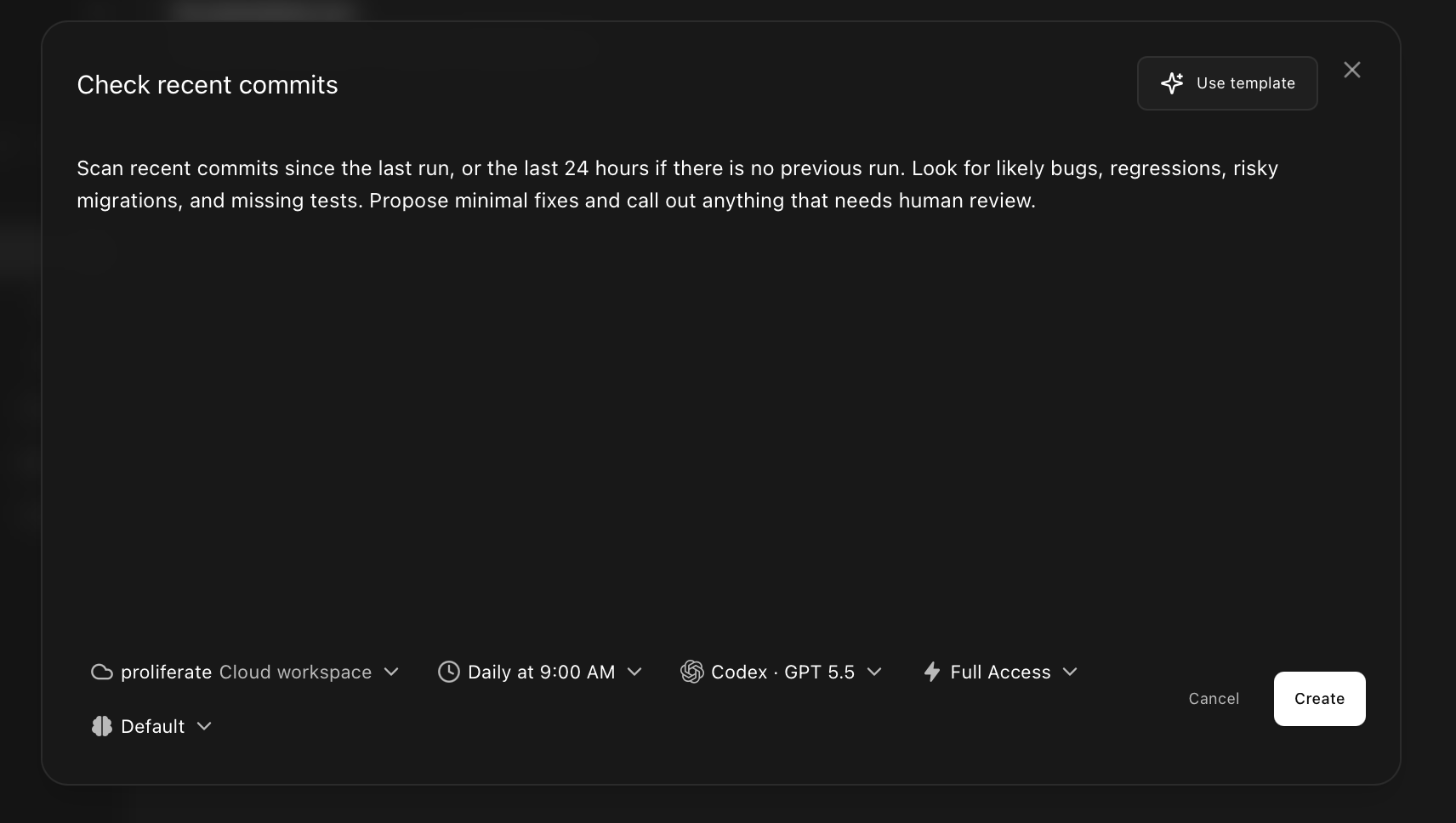
- Prompt- the work the agent should do every run. Keep it tight; a workflow prompt is rerun verbatim, so vague phrasing compounds. Use the Use template shortcut if one of the built-in starting points (recent commits, CI failures, release notes, standup notes) is close to what you want.
- Run in- who owns the run and where it happens: Personal (your own setup, visible only to you) or Team (your organization's cloud, any admin can manage it). The owner decides the available run locations- a local worktree or your personal cloud for Personal, your organization's cloud for Team.
- Schedule- hourly or daily today, with daily optionally limited to specific weekdays. Leave it manual while you're testing.
- Agent- harness, model, and permission mode. Most first automations want a mode that doesn't stop for approval, since nobody is watching a scheduled run live to click through prompts.
Workflow editor
The workflow editor with prompt, Run in (Personal/Team + location), schedule, and agent/model controls, plus the Use template shortcut.
Test before scheduling
Run the workflow manually first. Click Run now right next to the schedule control- it works whether or not a schedule is attached.
Open the run (it lands in the workflow's run history as its own workspace) and check:
- Did it produce the summary, diff, or file you expected?
- Did it touch anything it shouldn't have?
- Is the prompt narrow enough that the next run will look the same?
Iterate on the prompt and configuration until a manual run is reliable, then turn on the schedule.
What happens next
Scheduled workflows run on the cadence you set. Each run creates a fresh workspace and session- it never reuses a previous chat- and shows up in the run history with its transcript, tool calls, and diff. When you sit down the next morning, open the run, review what the agent did, and accept or revise the work.
Automations that run in Personal cloud or Organization cloud keep going while your laptop is closed. A Local run location only fires while the desktop app is open, so it's the least predictable choice for anything you actually want to happen on schedule. See Local & cloud and scheduled-run predictability before you rely on one.