Automations
Recurring or triggered agent work.
Automations run agent work from a schedule or a manual click, so you don't have to open a workspace and retype the same prompt every time.
In the app this lives under Workflows in the sidebar (marked beta). The two names point at the same thing: "workflow" is what you see in the UI, "automation" is what this doc (and the API) calls it underneath.
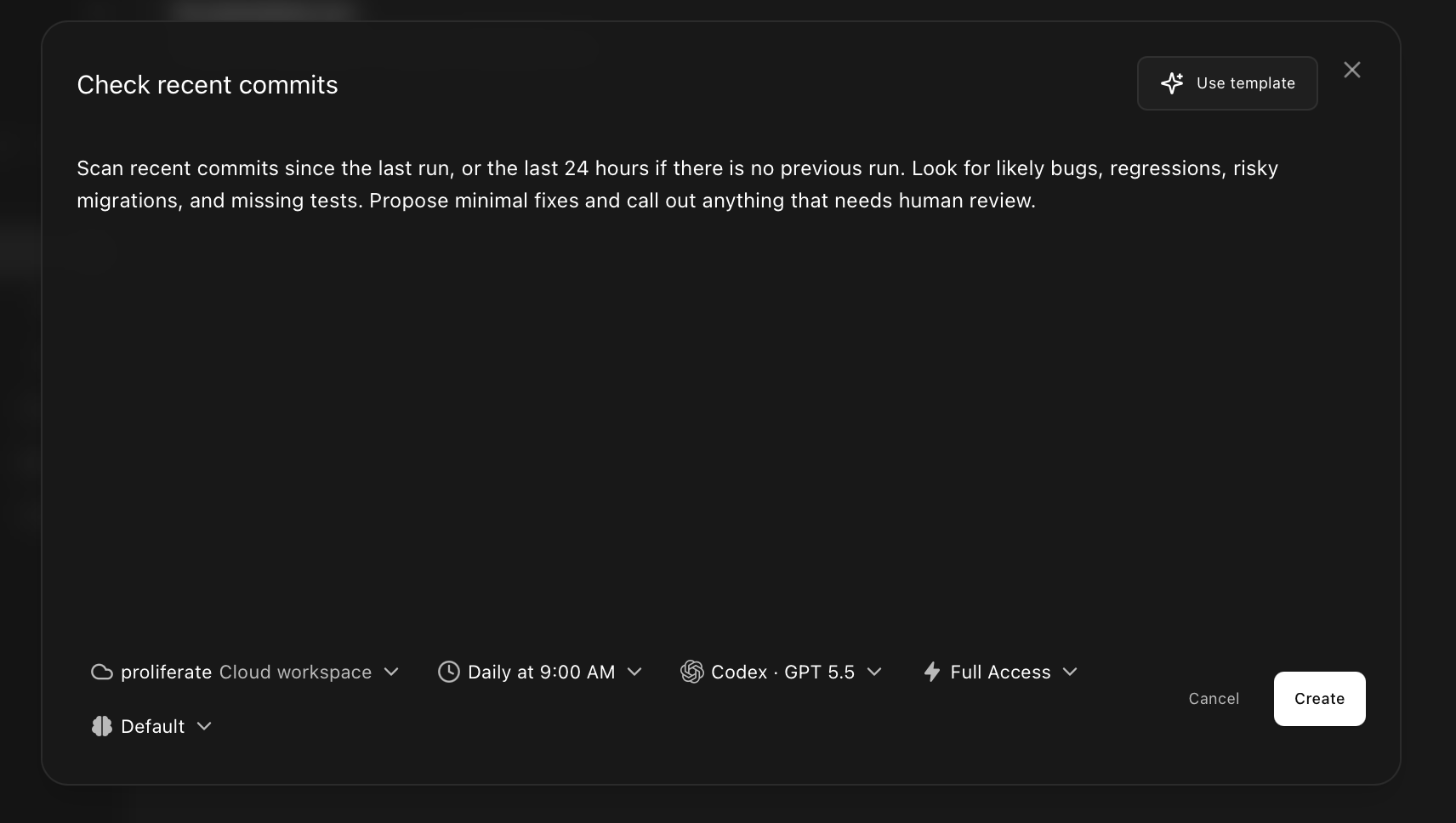
Set a schedule
Automations run on a schedule or from manual dispatch- click Run now whenever you want, whether or not a schedule is attached.
Today, schedules are hourly or daily (daily can be limited to specific weekdays, like weekdays-only or weekends-only). More complex recurrence and event-based triggers aren't supported yet; if you need "run when a PR opens" or "run when Sentry fires," that's on the roadmap, not in the product.
Pick who it runs as, and where
Every automation has an owner and a run location, both set from the Run in control in the editor:
- Personal automations run with your own setup and only you can see or manage them.
- Team automations run in your organization's cloud. Creating, editing, running, and pausing one all require an organization admin today. See team workflows for the full shape.
The run location follows from the owner:
- Local - a worktree on your machine, personal automations only. This only fires while the desktop app is open, so it's the least predictable choice for anything scheduled. See scheduled-run predictability.
- Personal cloud - a cloud workspace under your account. Keeps running with your laptop closed.
- Organization cloud - the shared cloud environment for your team, available to team automations.
Each run creates a brand-new workspace and session; it never reuses an existing chat.
Workflows list and calendar views
The Workflows page with List and Calendar tabs, an Include paused toggle, and a New workflow button.
Configure the agent
Pick the harness and model, plus whatever session controls that harness exposes- a planning-or-coding mode, a permission/access level (Codex's Full Access, Claude's bypass-permissions, and similar), a reasoning effort, and so on. These are saved as a reusable run configuration for that automation, the same controls you'd see starting any chat by hand.
Common uses
Automations are a good fit for:
- Routine code review passes.
- Dependency or test-suite checks.
- Issue triage.
- Documentation drift checks.
- Repeated repository maintenance.
The editor ships a Use template shortcut with a few starting points- Check recent commits, Summarize CI failures, Draft release notes, Prepare standup notes- so you can adapt a known-good prompt instead of writing one from scratch.
Workflow detail and run history
A single workflow's detail page: prompt summary, run configuration, and a run history list with per-run status.
Tool access inside automations
An automation runs as a normal agent session, so it gets the same reach a manual session would: any plugin enabled for the workspace, from first-party capabilities to community MCP servers for things like Slack, Linear, GitHub, Sentry, and PostHog. A triage automation can read its inputs from wherever they actually live, with no extra wiring. See tool calls for how that plays out during a run.